How to Take a PC Screen Recording?
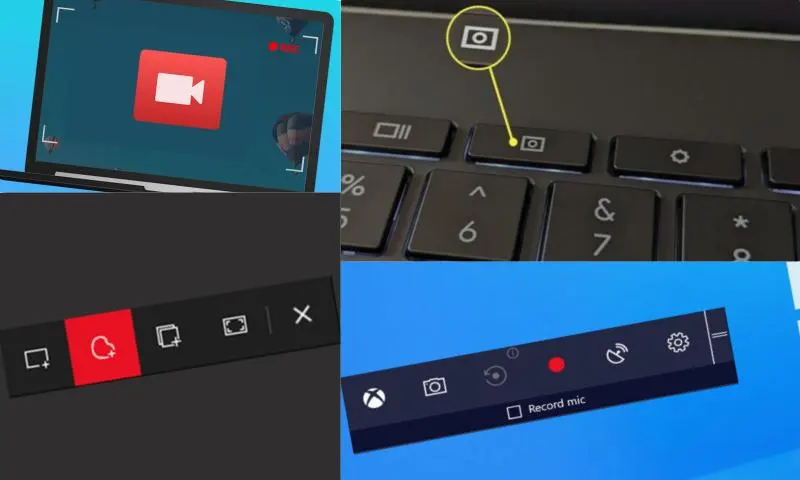
The first step in how to take a PC screen recording is to choose appropriate software. There are many screen recording programs available on the market, and each offers different features. OBS Studio, a free and open-source software, allows users to take high-quality screen recordings. OBS Studio is known for its professional features, especially in video editing, as well as its live streaming capability. Camtasia, which offers a simpler interface and usability, provides users with flexibility through its editing tools while recording the screen. Programs like Bandicam are ideal for recording games. For information on this topic and to ask your questions, you can check out relevant online companies on web pages and review them in detail.
PC Screen Recording Settings
When taking a PC screen recording, making the correct settings will allow you to get a high-quality and professional video. First, attention should be paid to video resolution and frame rate settings. Taking a recording at a higher resolution allows you to get a clearer and more professional video. However, it should not be forgotten that recording at high resolution will use more system resources. Also, if you plan to record audio, it is necessary to configure the settings for recording microphone and system sounds.
Completing and Editing the PC Screen Recording Process
The final step in how to take a PC screen recording is to edit and share the recorded video. After the recording process is completed, many screen recording software allows you to edit the video. You can make edits such as cropping unnecessary parts of the video, adjusting the volume, or adding annotations. Advanced programs like OBS Studio allow you to export the video in various formats after recording. After completing the editing process, you can share your video on platforms like YouTube and Vimeo.